
Hi All,
In this blog, I am going to talk about Pega GenAI Autopilot
The world of enterprise automation is rapidly evolving, and Pega GenAI Autopilot stands at the forefront of this transformation.
Let’s explore how Pega GenAI Autopilot enhances your app development experience through intelligent recommendations and automation.
Case Type Name Suggestions
When you create a new application, its very much important to create correct case types. Case type is the starting point of the user interaction within business flow in most of the cases. With GenAI Autopilot, this process becomes intuitive and efficient.
By analyzing the description or goal of your application, Autopilot automatically suggests relevant case type names that align with your business objectives.
For example, if you’re building a service management application, Autopilot might recommend case types such as Service Request, Incident Resolution, or Change Approval.
This capability helps teams save time, maintain consistency, and ensures that the foundation of the application aligns with organizational standards.
After logging in to the application, lets go to the Case Types landing page.
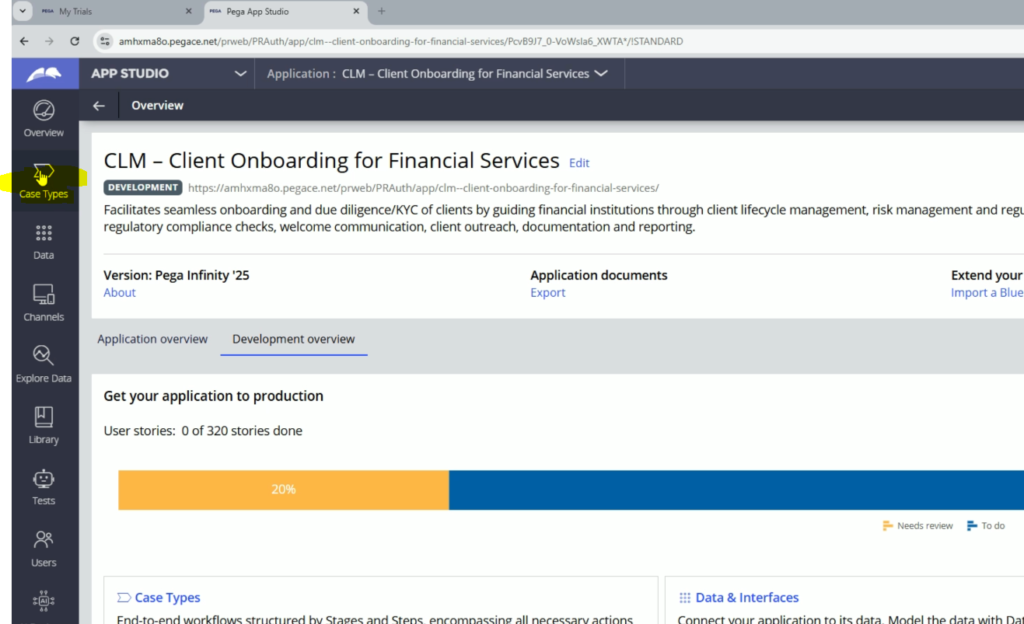
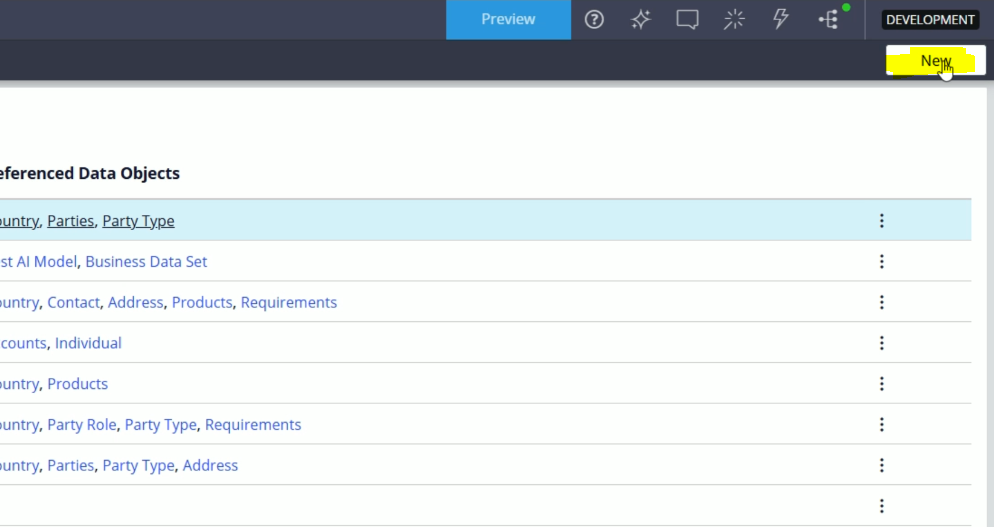
On Case Types Landing Page, you will find a button with label New to create a new Case Type.
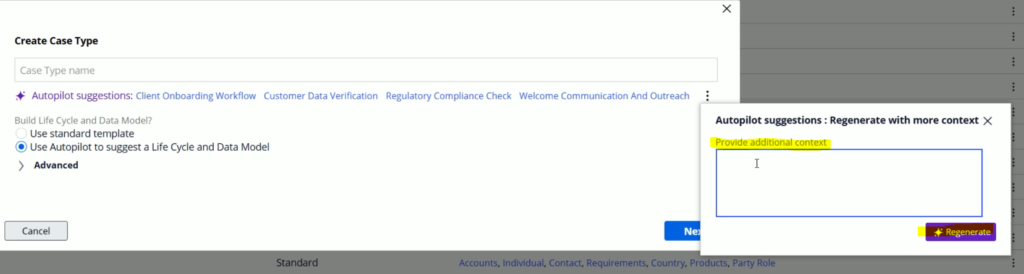
So based on the application name and its description, the GenAI Autopilot is suggesting a few Case Types, which we can consider for the development.
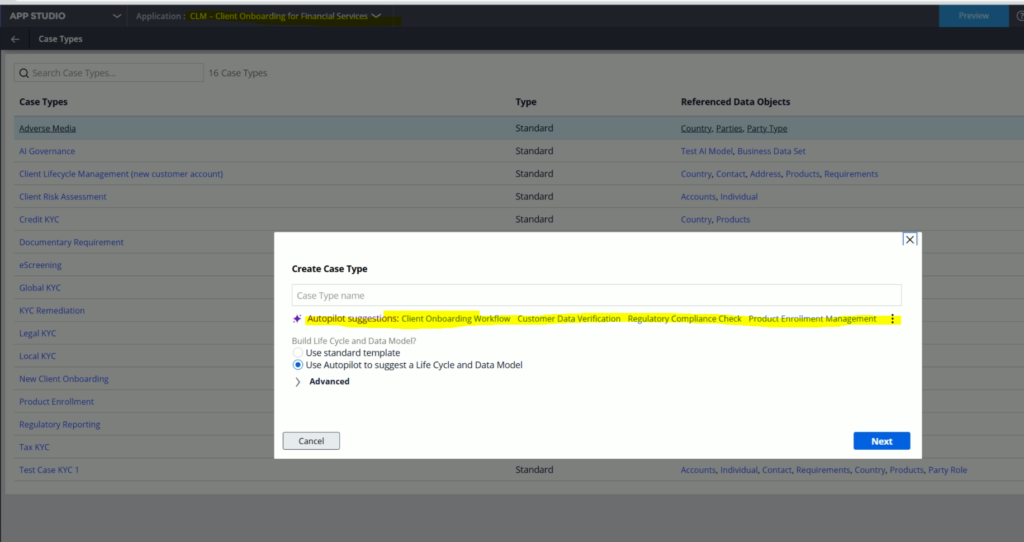
Not always we will be going with these options. These are just AI based suggestions. You might what more AI can suggest. In this case, you can click the three vertical dots to explore two more options.
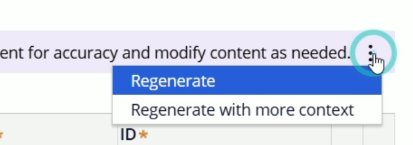
Once you click this three vertical dots option, you will get these two options.
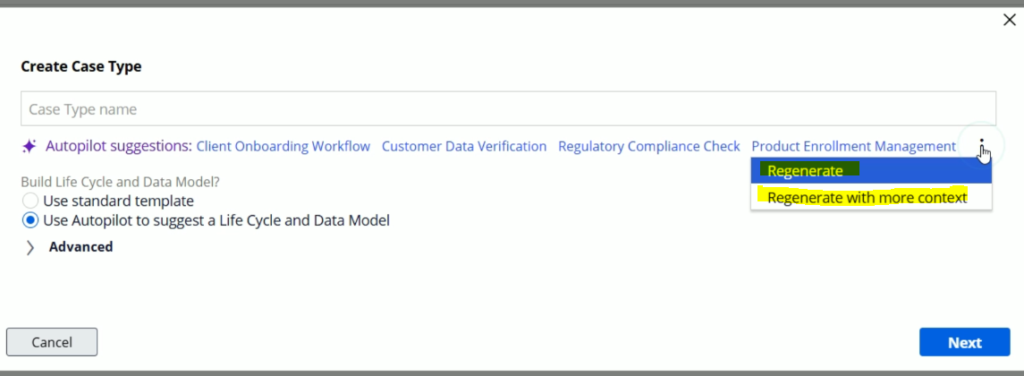
The first one is Regenerate. It will create a new list of suggestions. The newly generated list might contain some results from the old set.
The next option is Regenerate with more context. If you select this option, it will ask you to enter the context for which it will suggest more case types.
Let me select the first Case type suggestion:
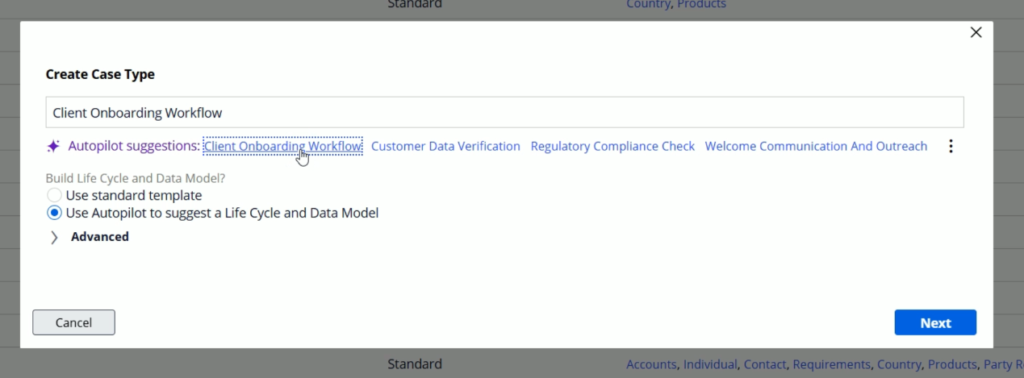
At the bottom, you will see couple of options and the second is Use Autopilot to suggest a Life Cycle & Data Model.
So here, Autopilot will give you Stages, Processes, Steps and properties for the selected case type.
This allows you to get a ready made case type structure and you can alter it based on your requirement. If you have a little idea about your case type, you can go ahead and create a complete case type with properties in it.
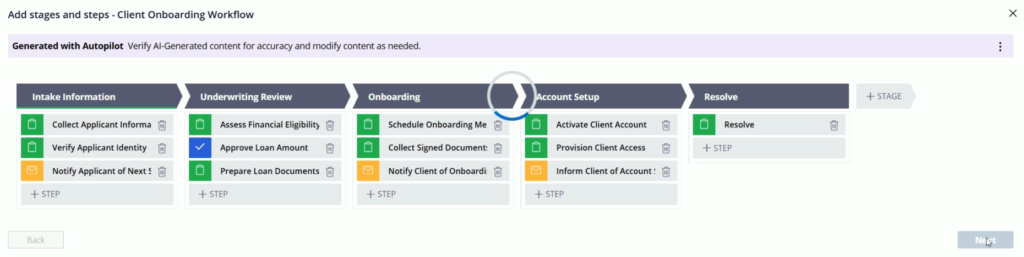
So, once we click Next, we will land on the next screen where it will show the Case lifecycle for the selected case type
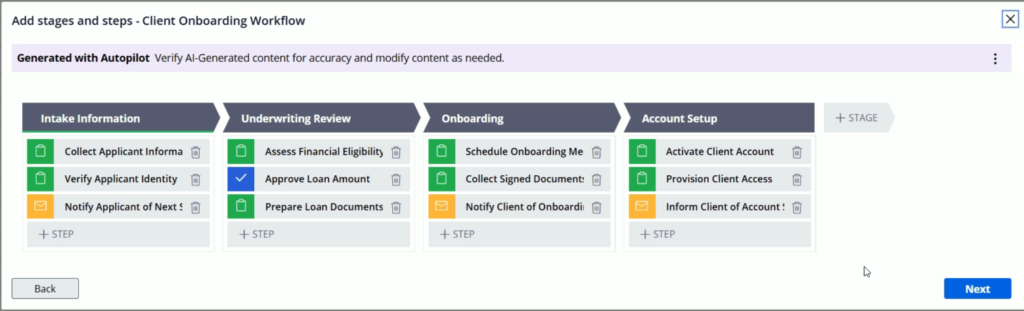
This is a great starting point for any developer.
As a part of development activities, we are free to add or delete any stage or step. Below here, I added one more stage Resolve.
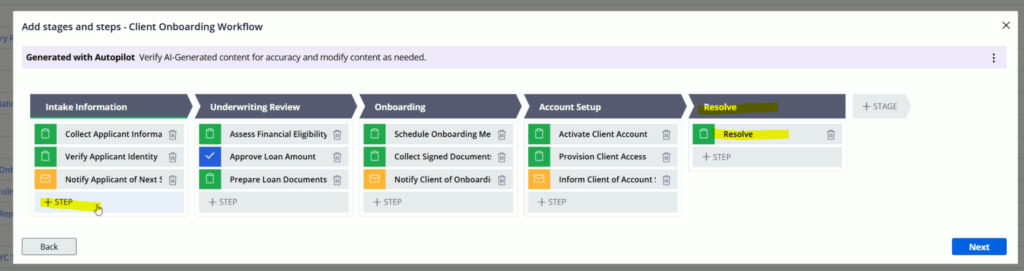
After confirming all the changes, we can click Next
On the next screen, we need to confirm the Data Model for this case type. Data Model is nothing but properties within this case type class.
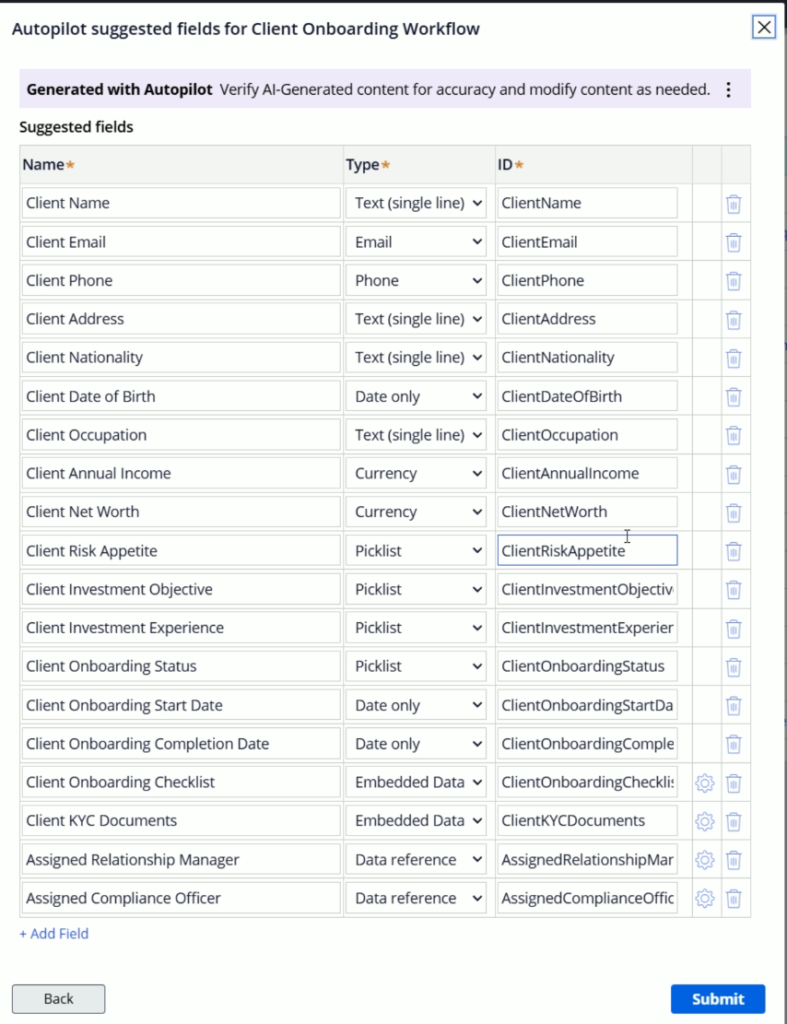
Here Autopilot is suggesting the probable properties required for the given case type. You can add or delete properties as per your requirements
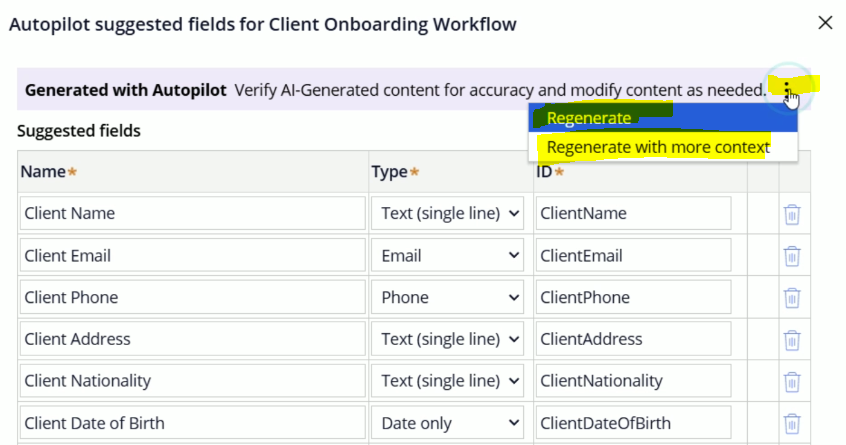
Just like case type, you as well you will get two options for regenerating the options. And these options work in the same fashion.
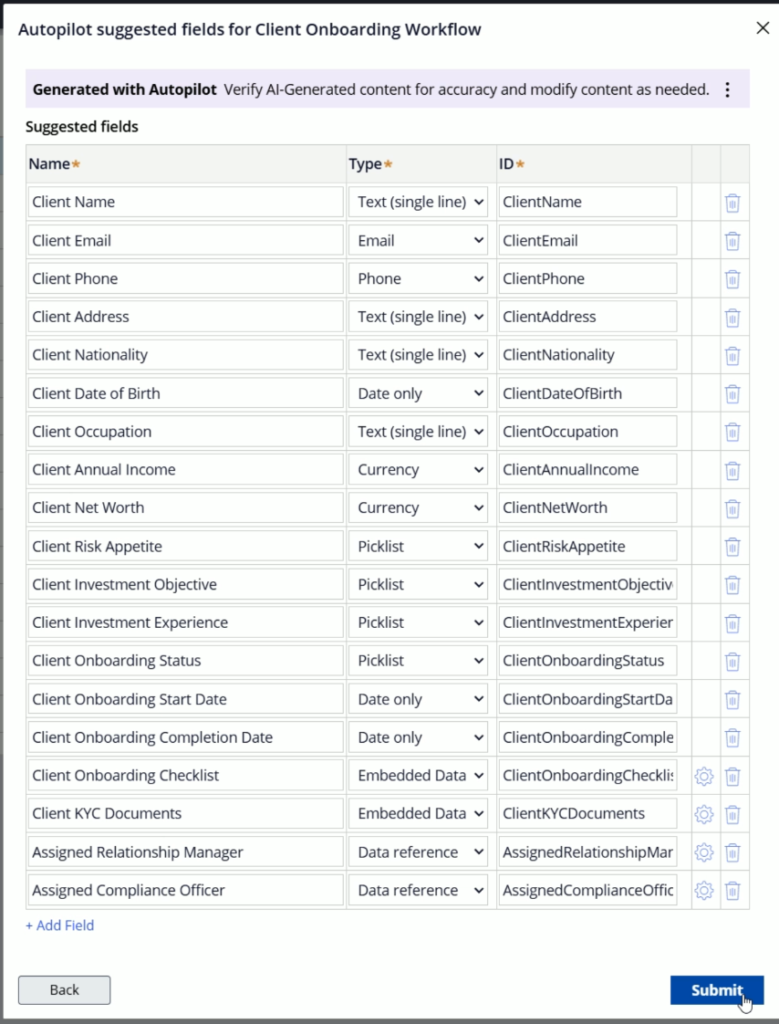
Once you are done with your changes, click Submit to create a new case type will all given details.
So like this, you are a lot of stuff by Pega GenAI Autopilot which will reduce a lot of efforts.
2. Data Type
Apart from Case Types, Pega GenAI Autopilot will help to create a new Data Type as well.
Building a robust data model is essential for any Pega application. With GenAI Autopilot, you no longer have to create data types manually or guess which attributes to include. Autopilot analyzes your case types and automatically suggests relevant data types
Not only the Data Type or properties within it, the Autopilot will help you to generate the dummy data as well.
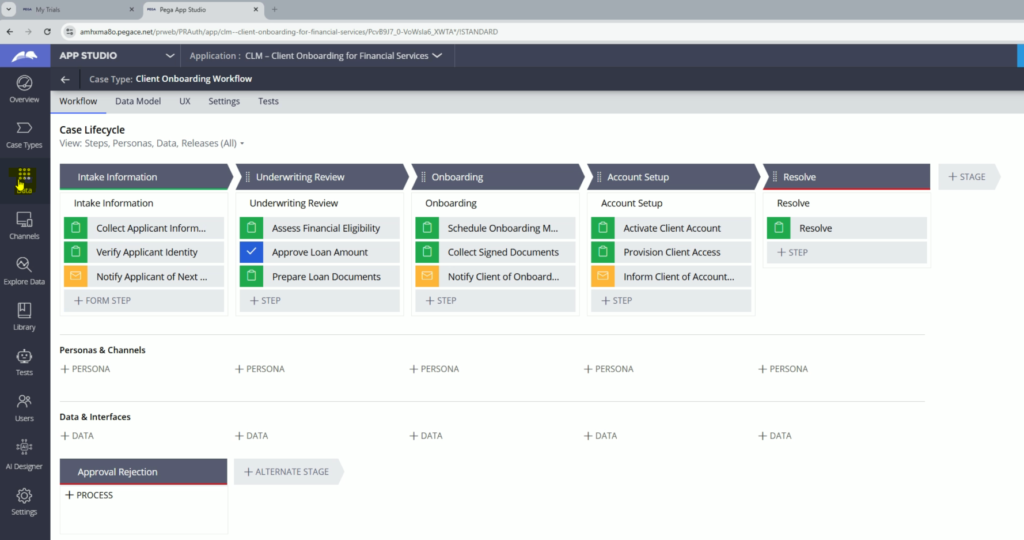
Now, lets move to Data landing page
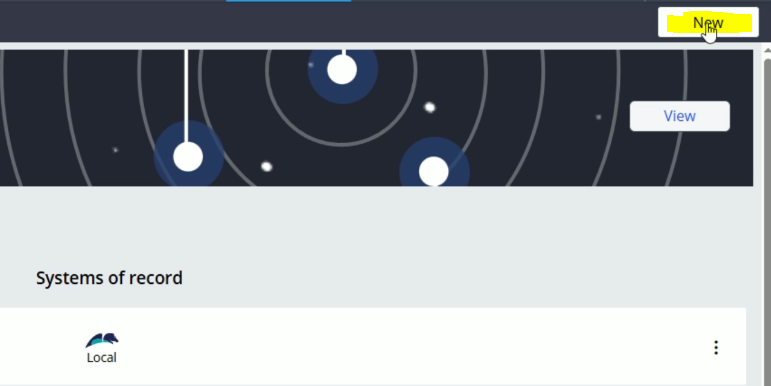
Click on New button to create a new Data type
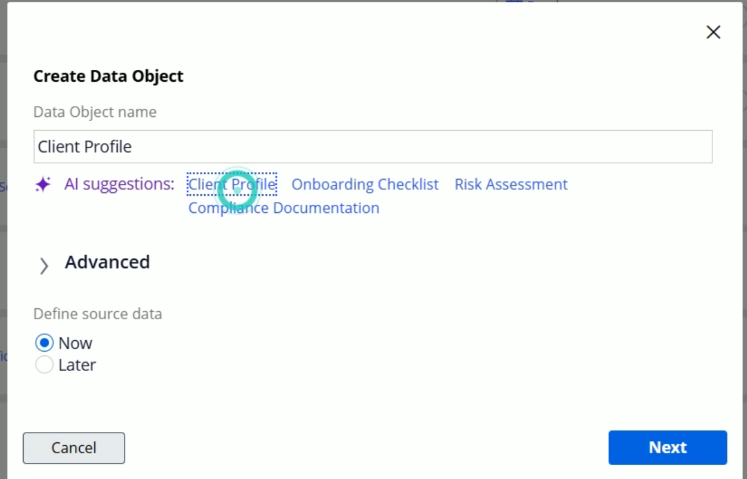
So, Autopilot is suggesting these data types based on the application name and its description. Lets select one of the Data type. Click Next
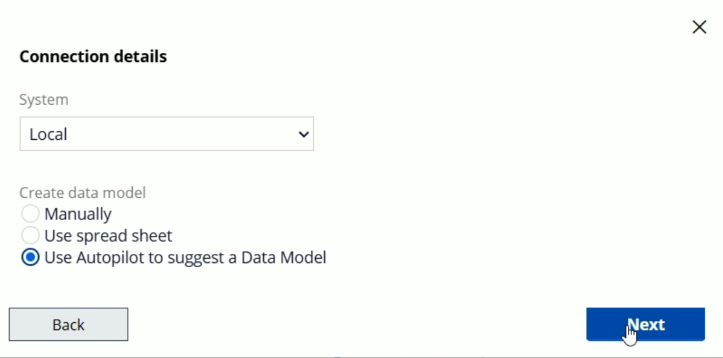
On the next screen, select Use Autopilot to suggest a Data Model and click Next
Now, the Autopilot will suggest the probable properties for this selected Data type.
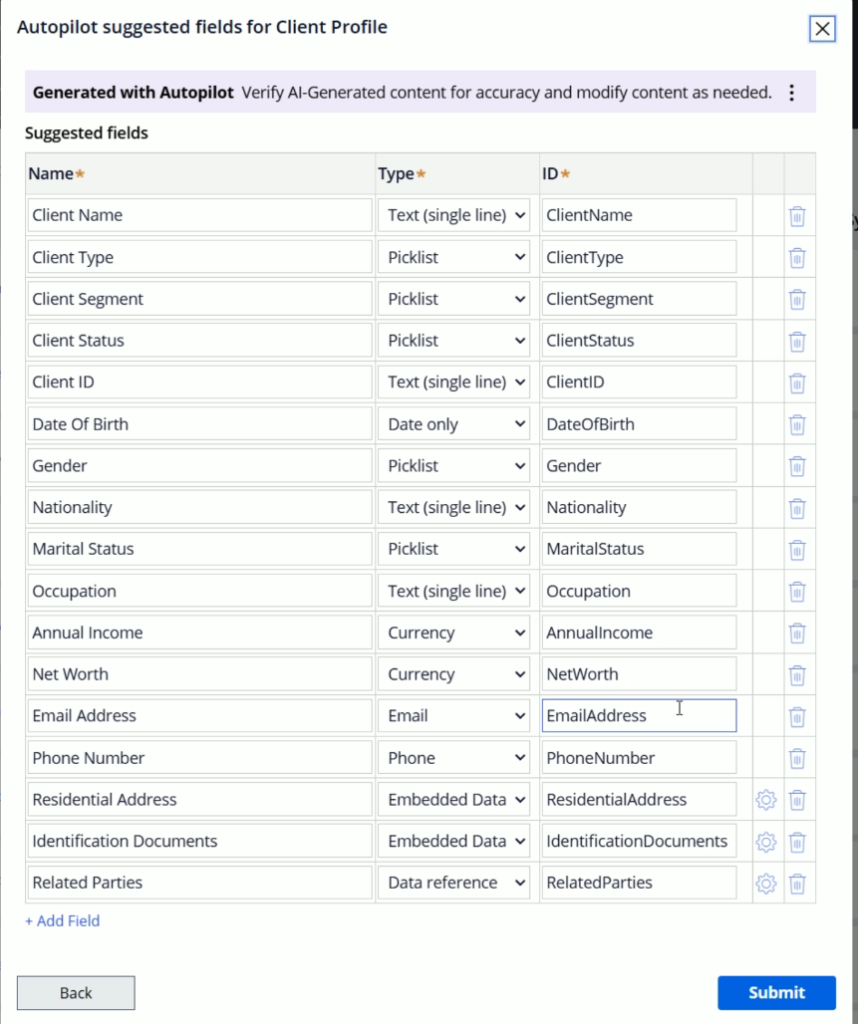
Here as well, we get these Regenerate options.
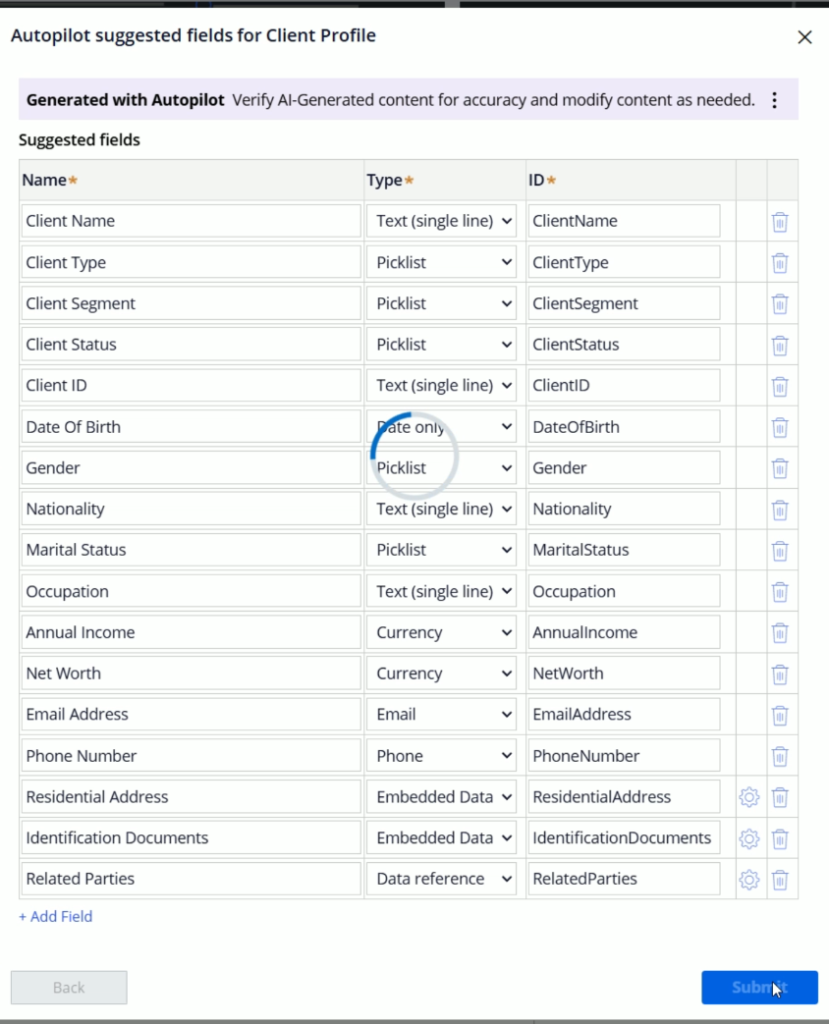
After confirming all the changes, lets click Submit to create this Data type
Now lets go and select any Data Type or you can select the newly created Data type.
Let me select this Compliance Officer data type

Lets jump on to the Records tab of the data type.
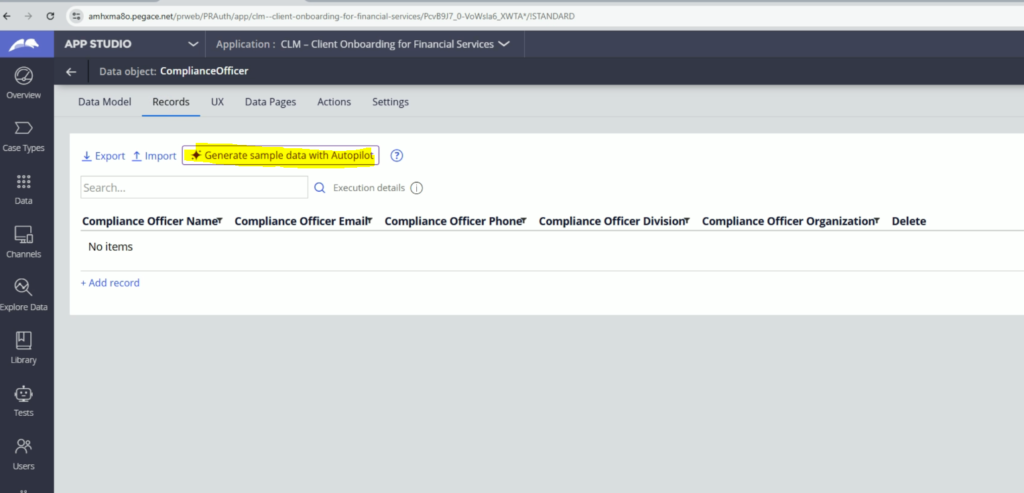
Here, you will get this option, Generate sample data with Autopilot.
Once you click this button, it will show a popup and will ask you to enter number of sample records.
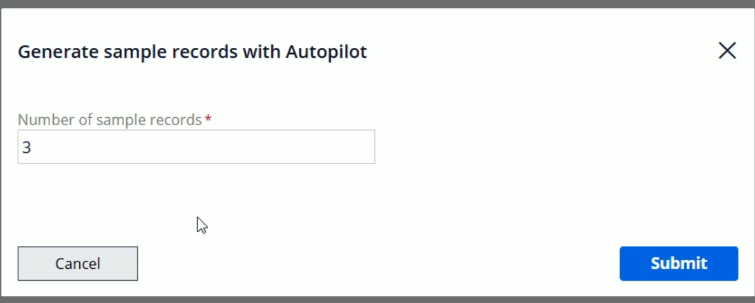
Let me enter 10 and hit Submit.
Based the column and records count, it will take some time

You can repeat this process multiple times to generate more data.
You might duplicate data as well, so you might need to delete the duplicate data if you don’t want any duplicate data.
3. Personas
Defining personas is a vital part of ensuring that an application meets user needs effectively.
Traditionally, this requires workshops and deep analysis to identify who interacts with the system and what their roles are.
With Pega GenAI Autopilot, AI takes care of this step by recommending personas based on your case types and application objectives.
To go to the Personas page, go to Users > User Management
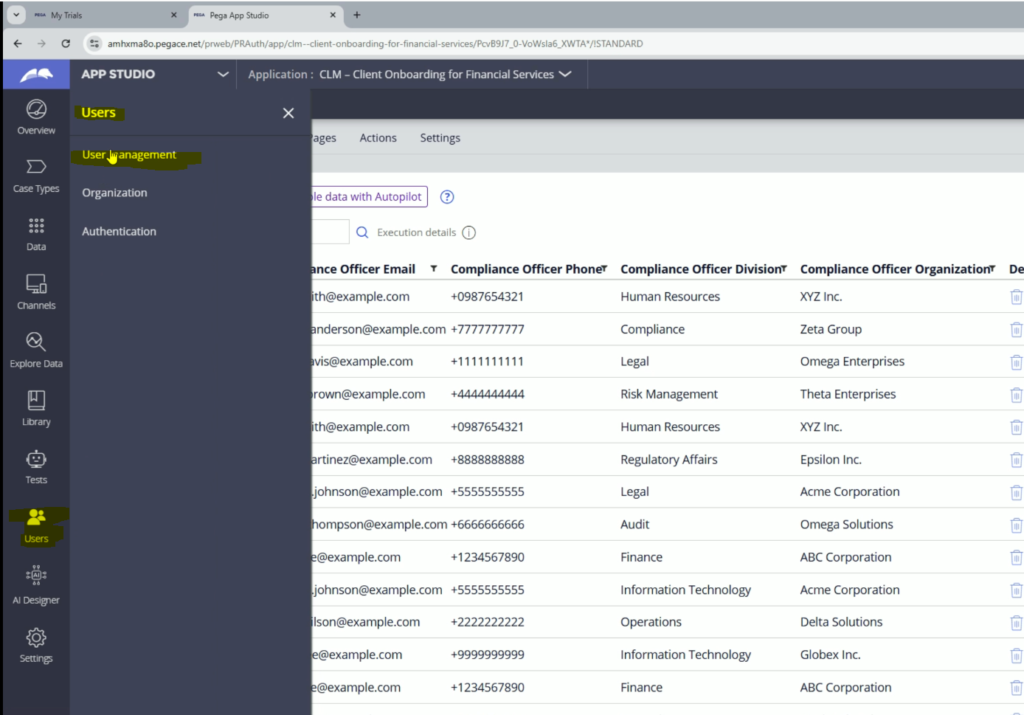
You will land on Personas page and click Add to create a new Persona
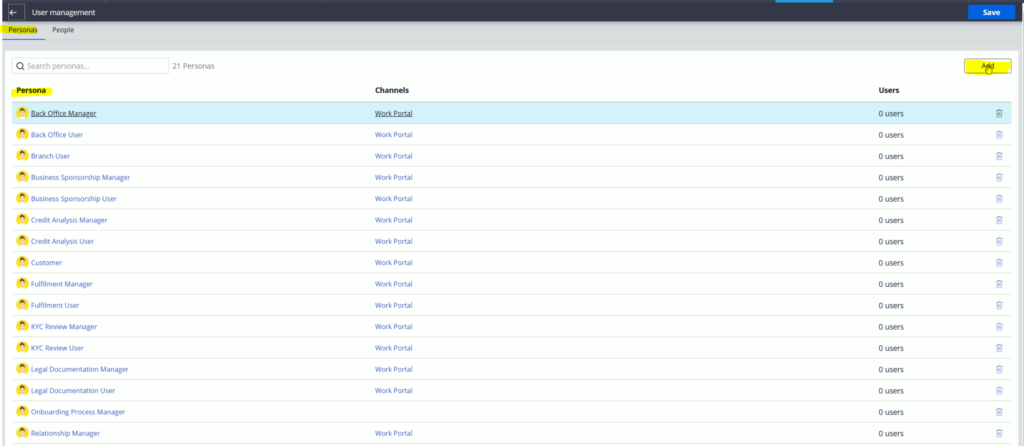
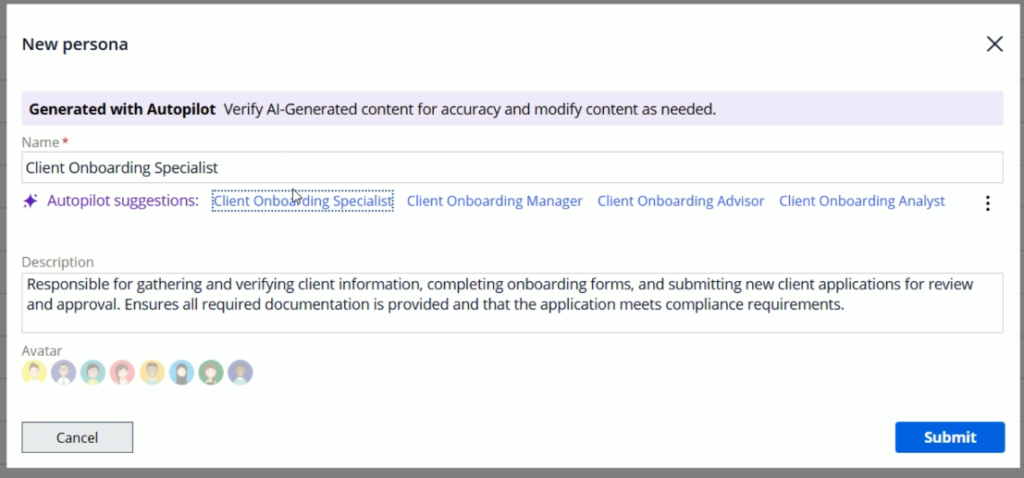
So, here Autopilot is suggesting these personas for the given application.
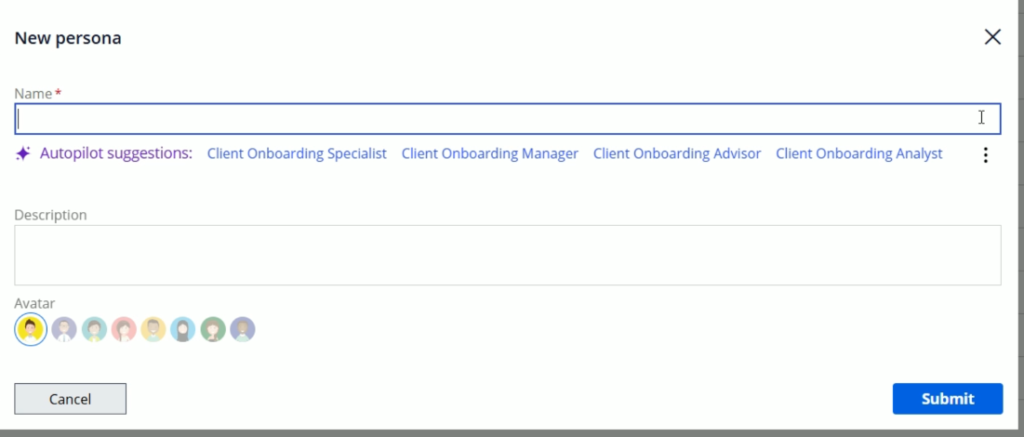
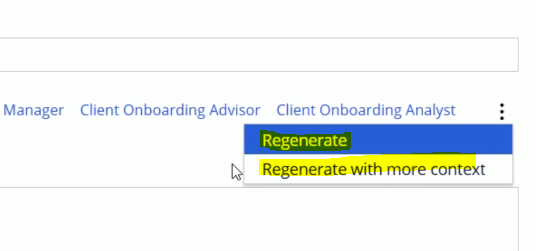
If you want more suggestions, you will get Regenerate options here as well.
Let me select one Persona. And Autopilot will give me its description as well
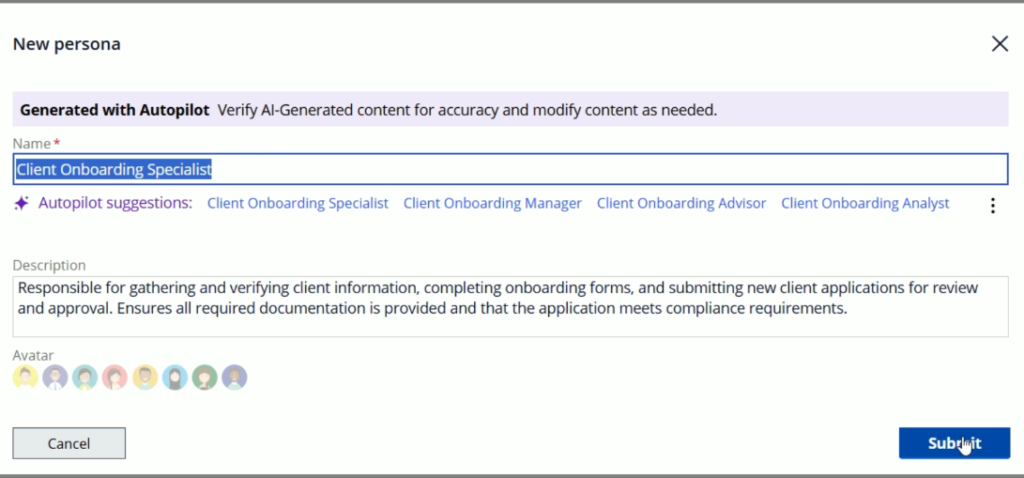
Now, click Submit to create this Persona.
Conclusion
Pega GenAI Autopilot is not just an AI assistant, it’s a co-creator that accelerates application design, improves accuracy, and drives collaboration between business and IT.
From suggesting case types and life cycles to designing data models and personas, Autopilot transforms the way Pega applications are built — making the process faster, smarter, and more intuitive. And yes, to all these suggestions a review a required before we finalize the things.
As organizations continue to embrace GenAI-driven development, tools like Pega GenAI Autopilot will play a pivotal role in shaping the future of intelligent automation.